Legartis Works Where You Work
Legartis connects your Legal AI Workspace to the systems where your contracts are stored, negotiated and signed, from the SharePoint folder to the signature.
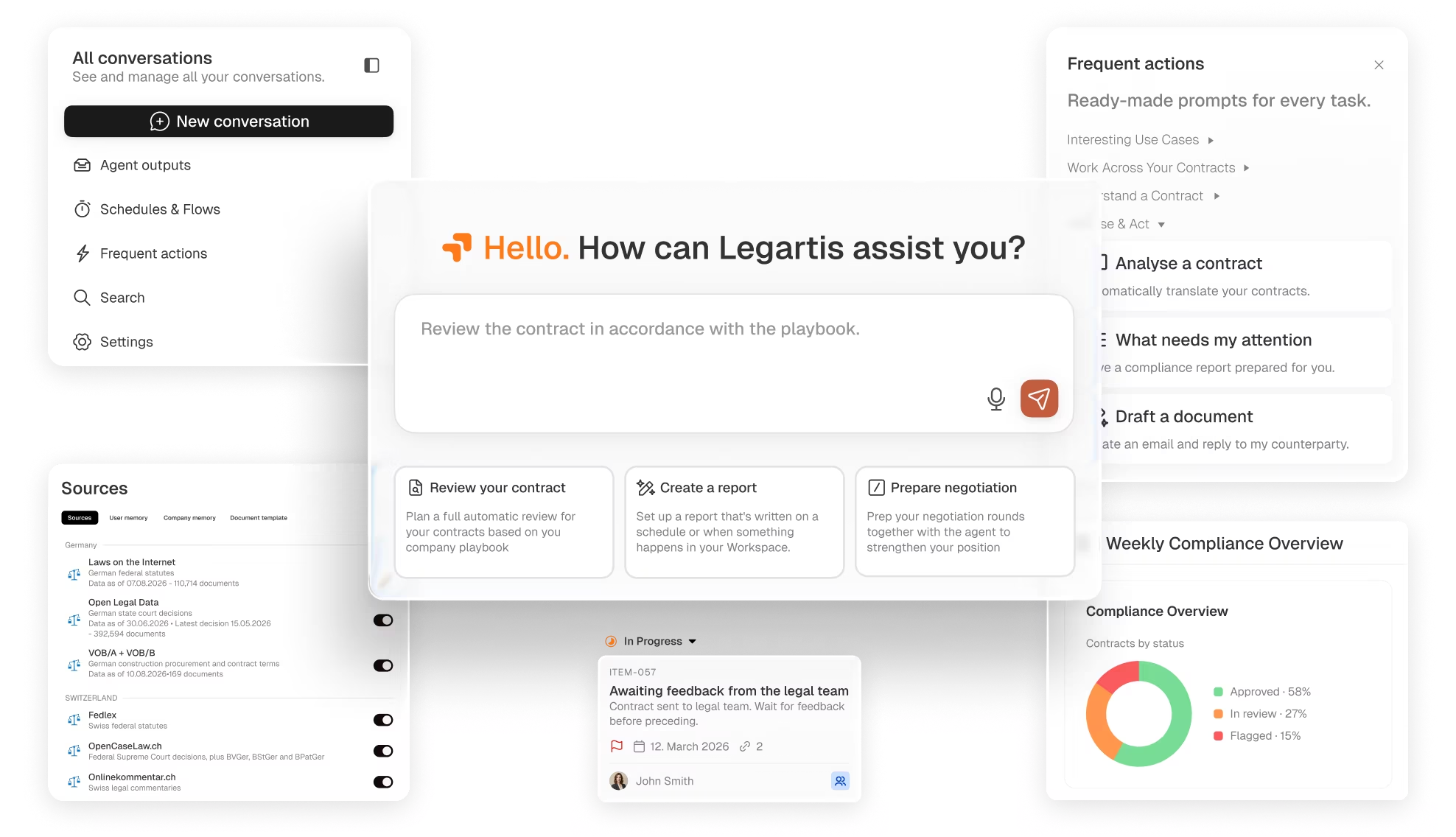



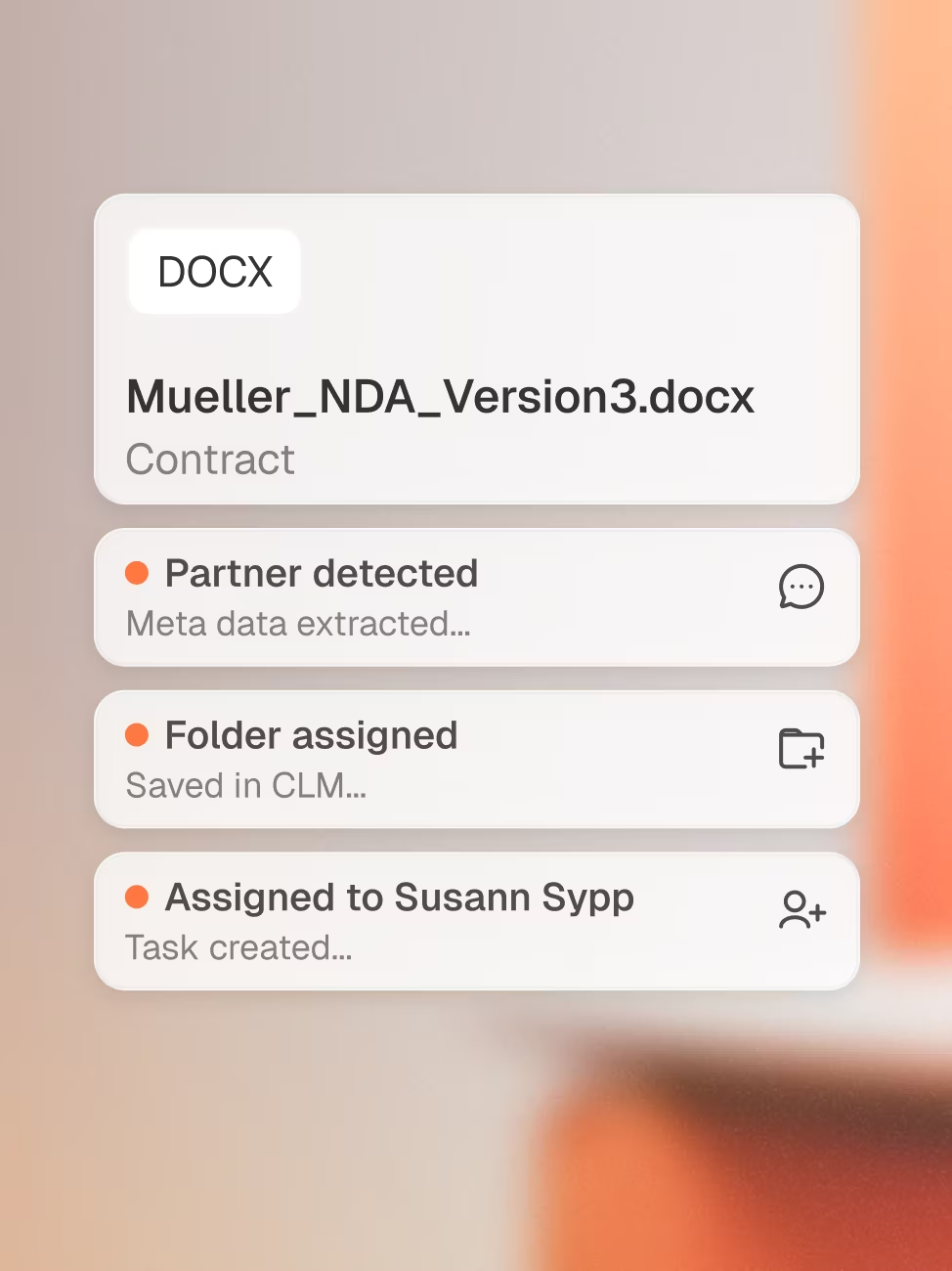
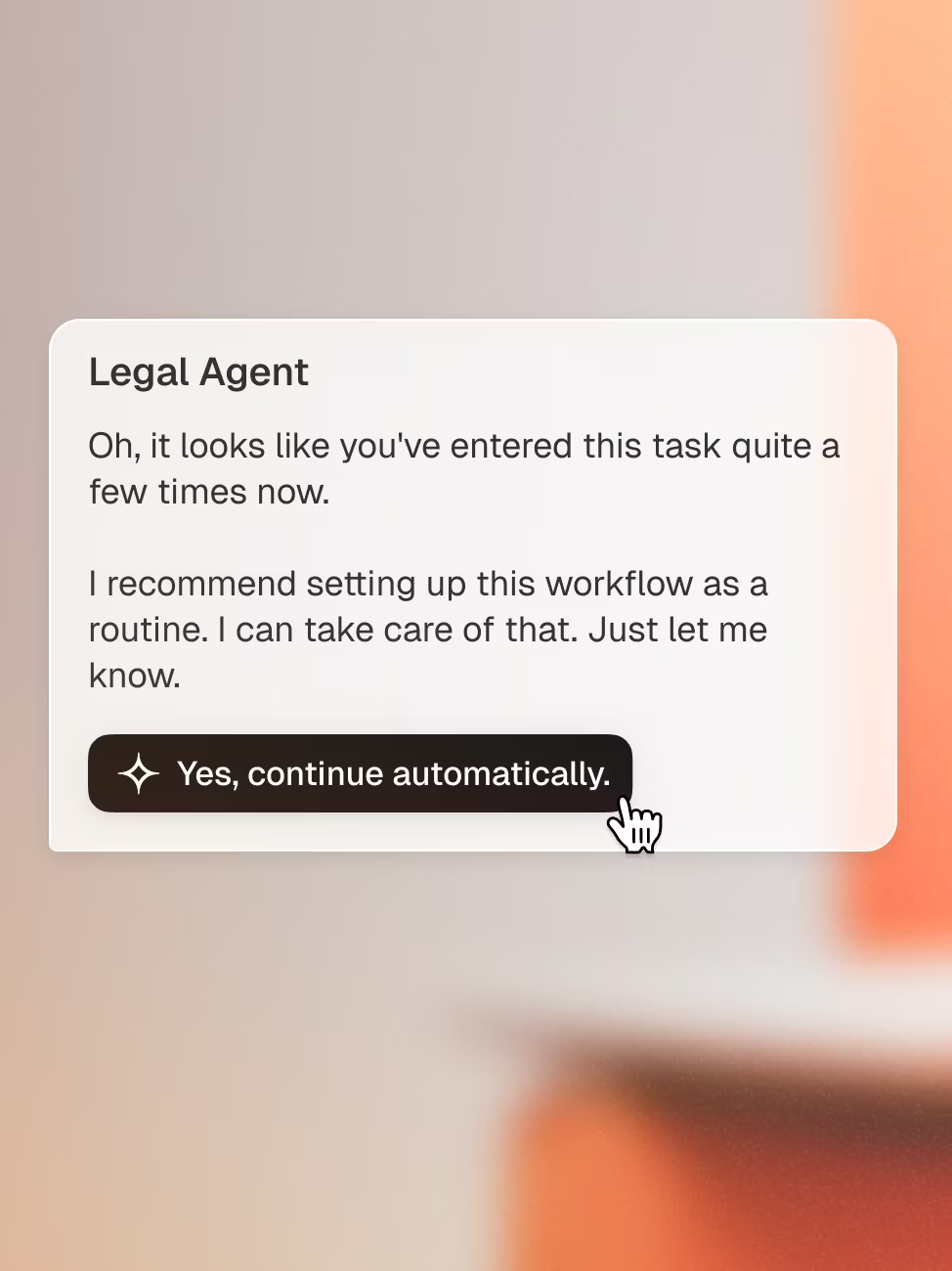
Legartis removes all manual handovers.
Legartis in Your Systems. SharePoint Contract Management and Integrations.
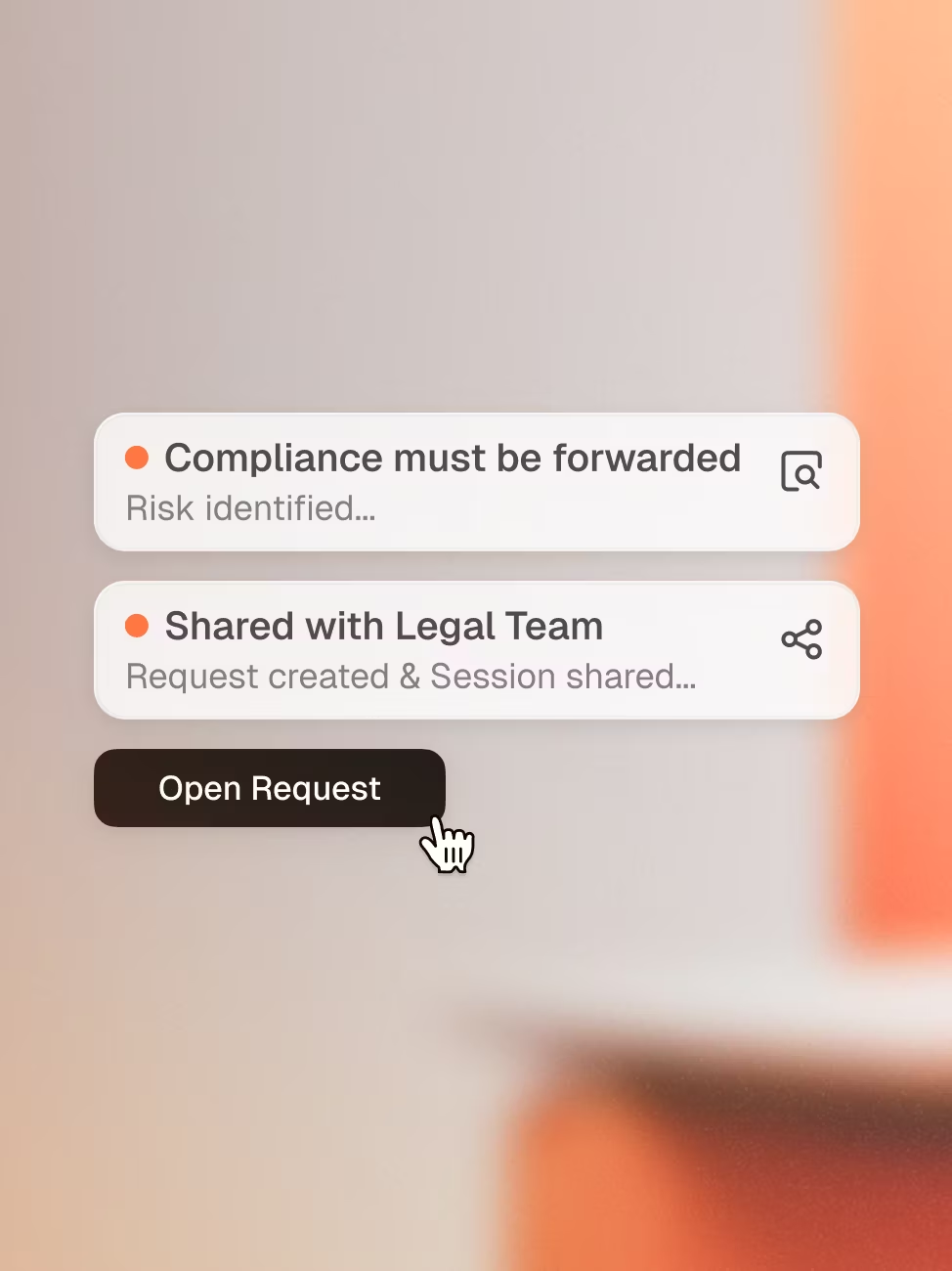
Legartis knows your files in SharePoint and Google Drive. You work right in Word, Outlook, Teams and Slack, sign in with your company account and send contracts for signature. You decide which folders Legartis can see and which team can open them. These legal software integrations are part of the Legartis Legal AI Workspace. The Legal Agent uses them to handle every step between an incoming contract and its signature.
For IT: Read-Only SharePoint Access and Single Sign-On with Entra ID or Okta
Anywhere You Work, You Receive Legal Answers
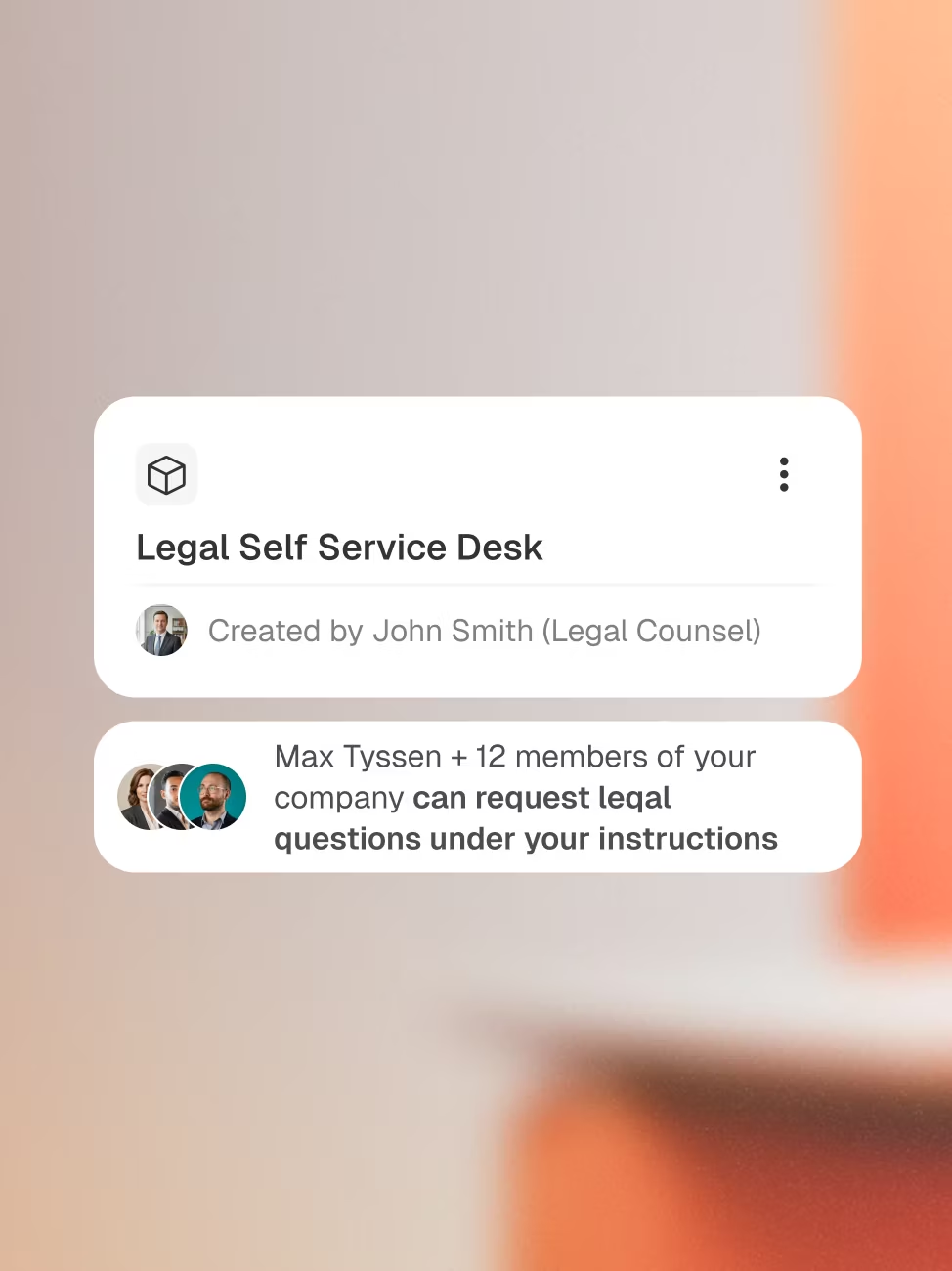
Your teams don't have to come to Legal. Legal comes to them, in the tools they already use, with answers that follow your standards.
Requests via Slack
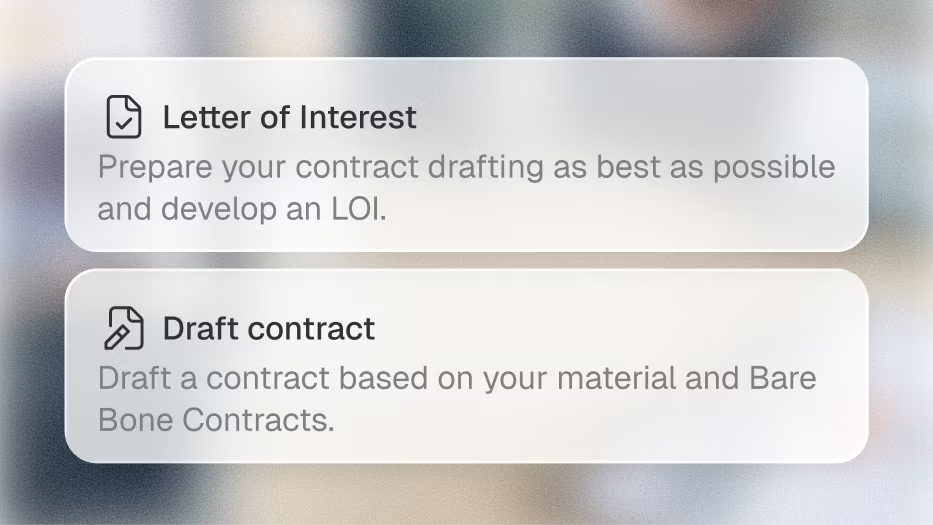
Requests from HubSpot deals
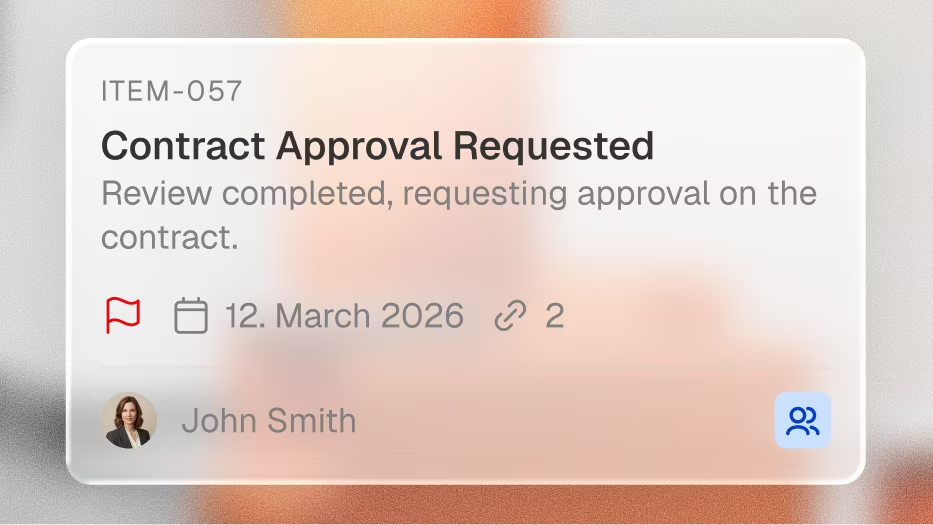
Reply drafted in Outlook
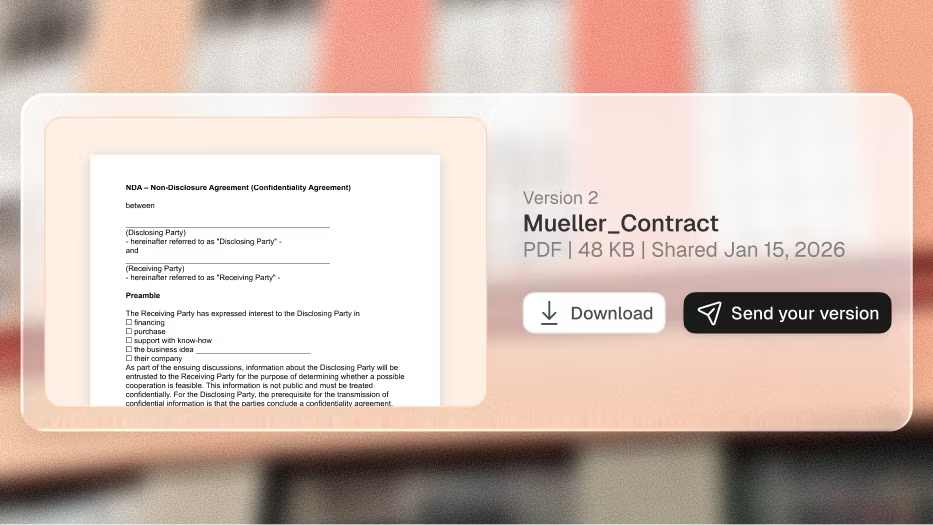
Requests via Teams
See How Legartis Works with Your Systems
For Faster Processes And Decisions
Decision-Making
Through Faster Deals
by Legartis
Legartis Adapts to Your Company.
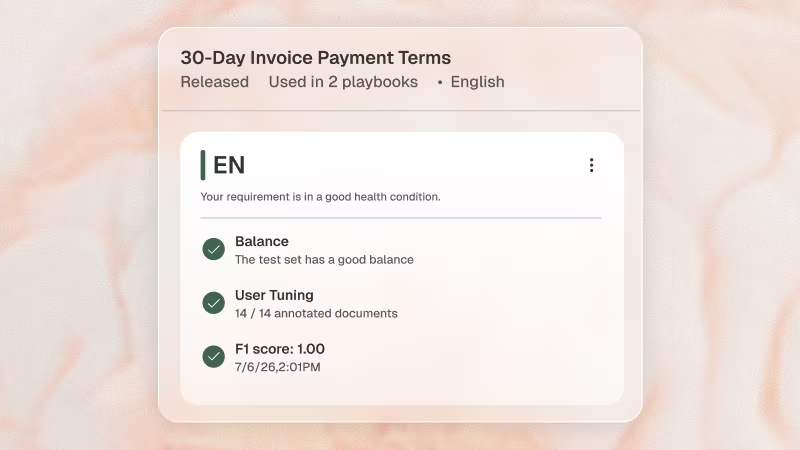
Measurable and controllable AI quality
A multi-layered quality system that you can see, control, and that improves with every use.
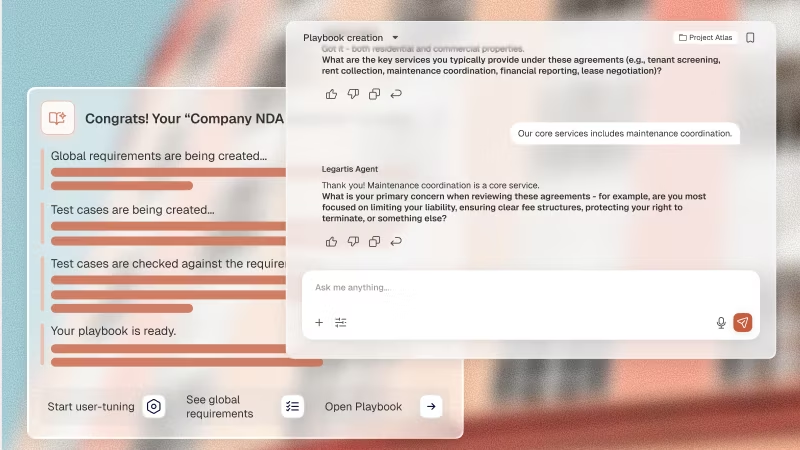
All contract types
Automatically create Contract Playbooks. Your knowledge is immediately available to everyone.
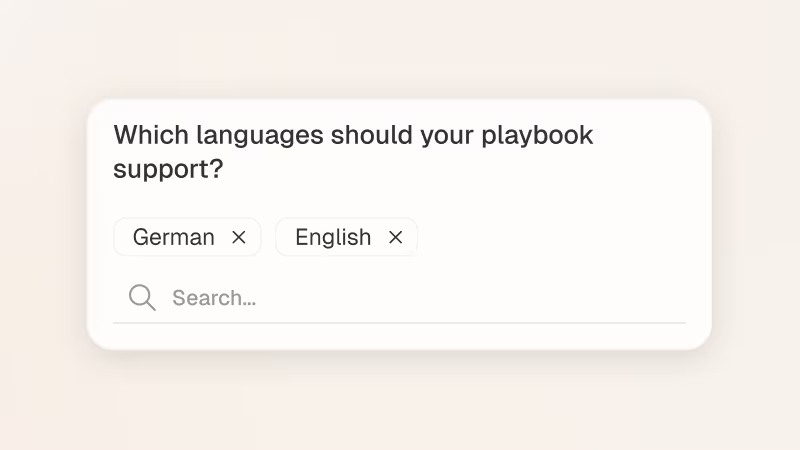
All European languages
Legartis understands every European language and supports your team across borders.

Platform-independent
Use Legartis in any working environment, regardless of format.
Legartis Makes Contract Knowledge Accessible to Everyone.
Contract knowledge becomes accessible and understandable for everyone in the company.
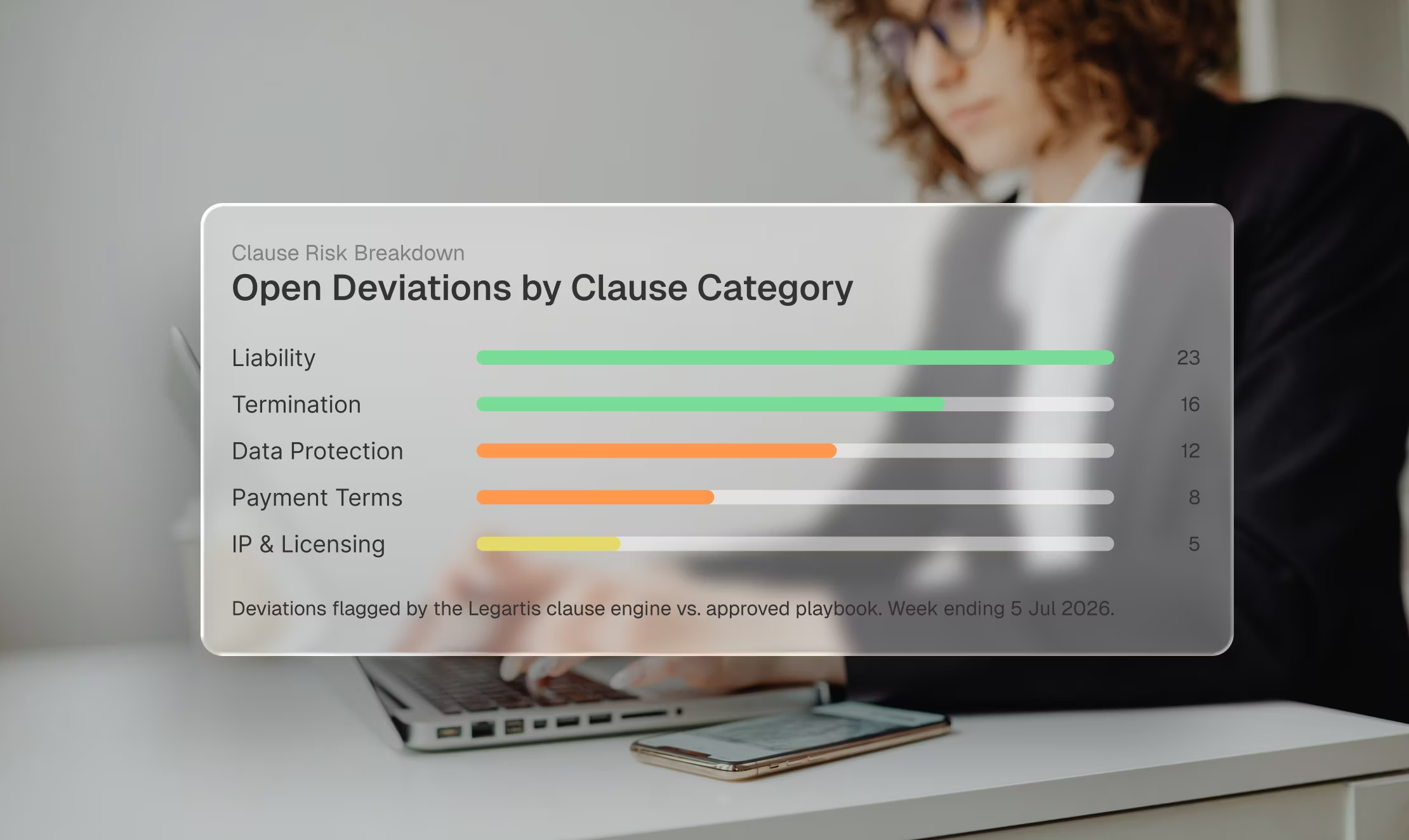
Across all industries
The Agentic Legal AI Workspace for Scalable Contract Work
Shared and standardized contract knowledge for the entire company.
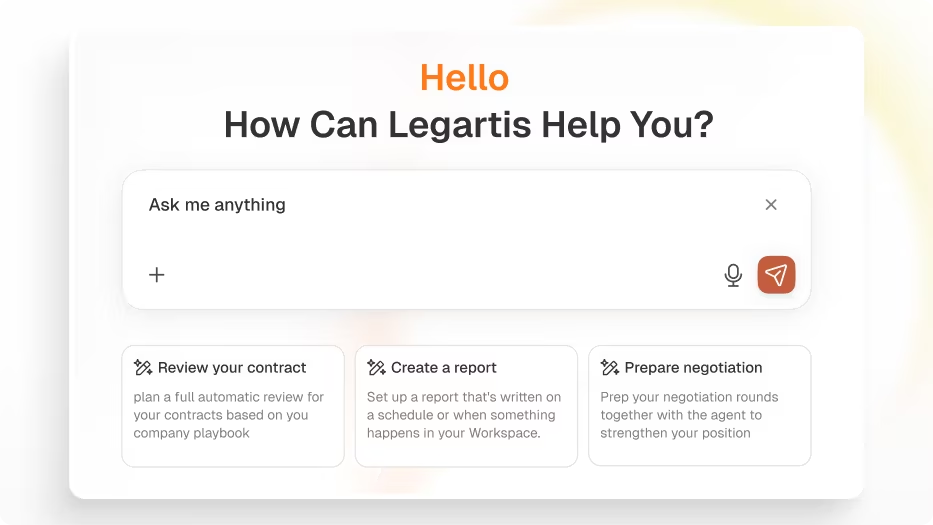
Agent for Contract Playbooks
With the Contract Playbook Creator you build your own playbook for every contract type.
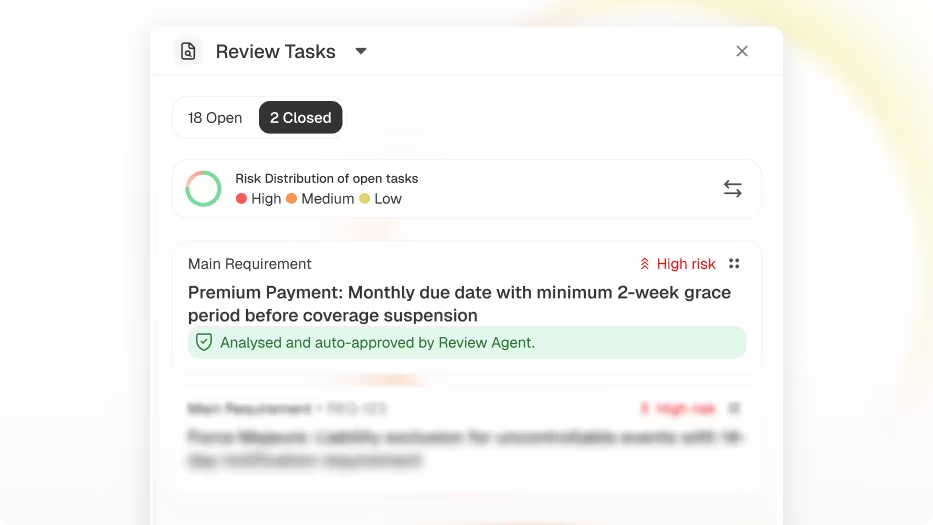
AI Contract Review
With AI Contract Review you check every contract against your company guidelines.
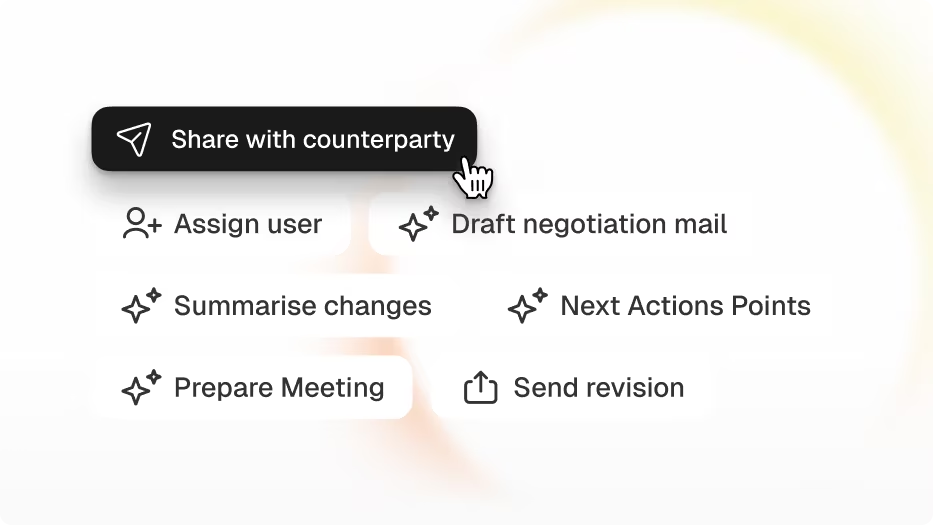
Contract Negotiation
From Contract Review to Agreement. Legartis guides you through the entire process.
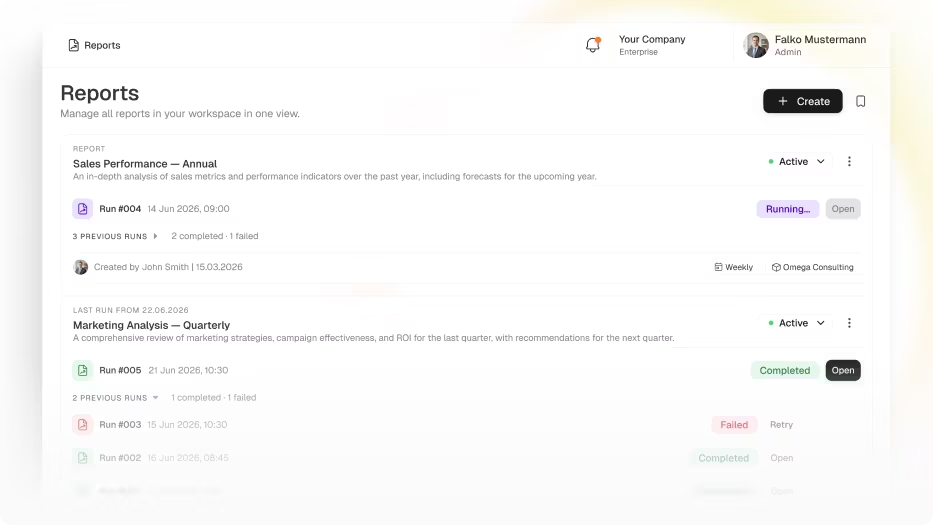
Contract Insights
Contract Insights shows you what to work on, where risks need mitigating and which team still has capacity.
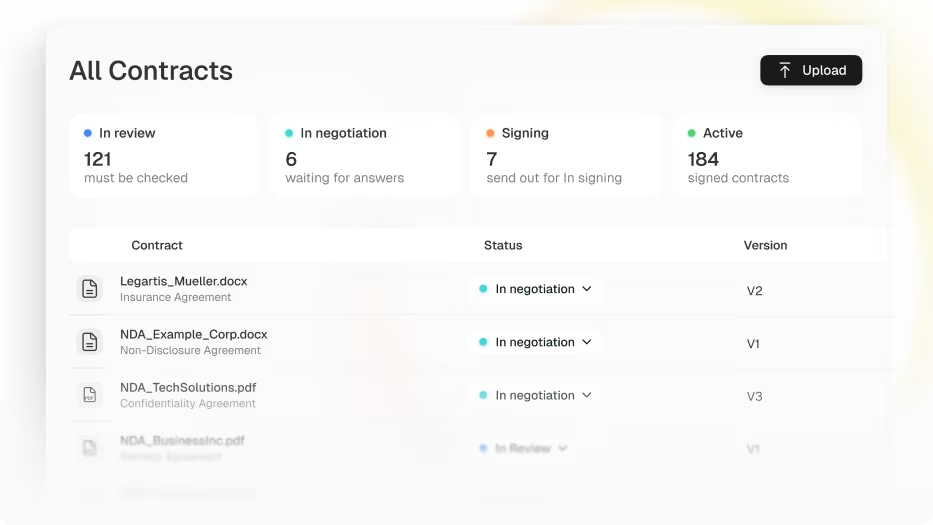
Contract Management
See at a glance where every contract stands. No chasing colleagues, no digging through inboxes.
Ready for Workflows That Accelerate Your Team?
Built for Organisations That Care About Trust.
Use the Full Power of Agentic Legal AI
Start with Legartis Today!
Talk to us about your business case or test Legartis right away!
FAQ
Frequently asked questions

You pick a folder in SharePoint and Legartis keeps importing it. It checks the folder every five minutes, and you can also start a sync right away. The originals stay in SharePoint, while the Legal Agent searches, compares and quotes from your contracts in Legartis.
No. The import only reads. If you disconnect, documents already imported stay in Legartis.
The team you choose during setup can see them. Permissions are not carried over from SharePoint.
Yes. With the Legartis Word add-in, you redline directly in Microsoft Word, against the same playbooks as everywhere else in Legartis. You can see how the review itself works on the AI Contract Review page.
Yes. You call the Legal Agent from Copilot, and it reviews against your playbooks. Copilot on its own doesn't know those playbooks. It doesn't replace Legartis. It connects to it.
Claude calls the Legal Agent through the Model Context Protocol (MCP). The review runs in Legartis against your playbooks, and the findings and redline appear in Claude. For the part of the request that Claude processes itself, Claude's terms apply. Read more about contract review with Claude.
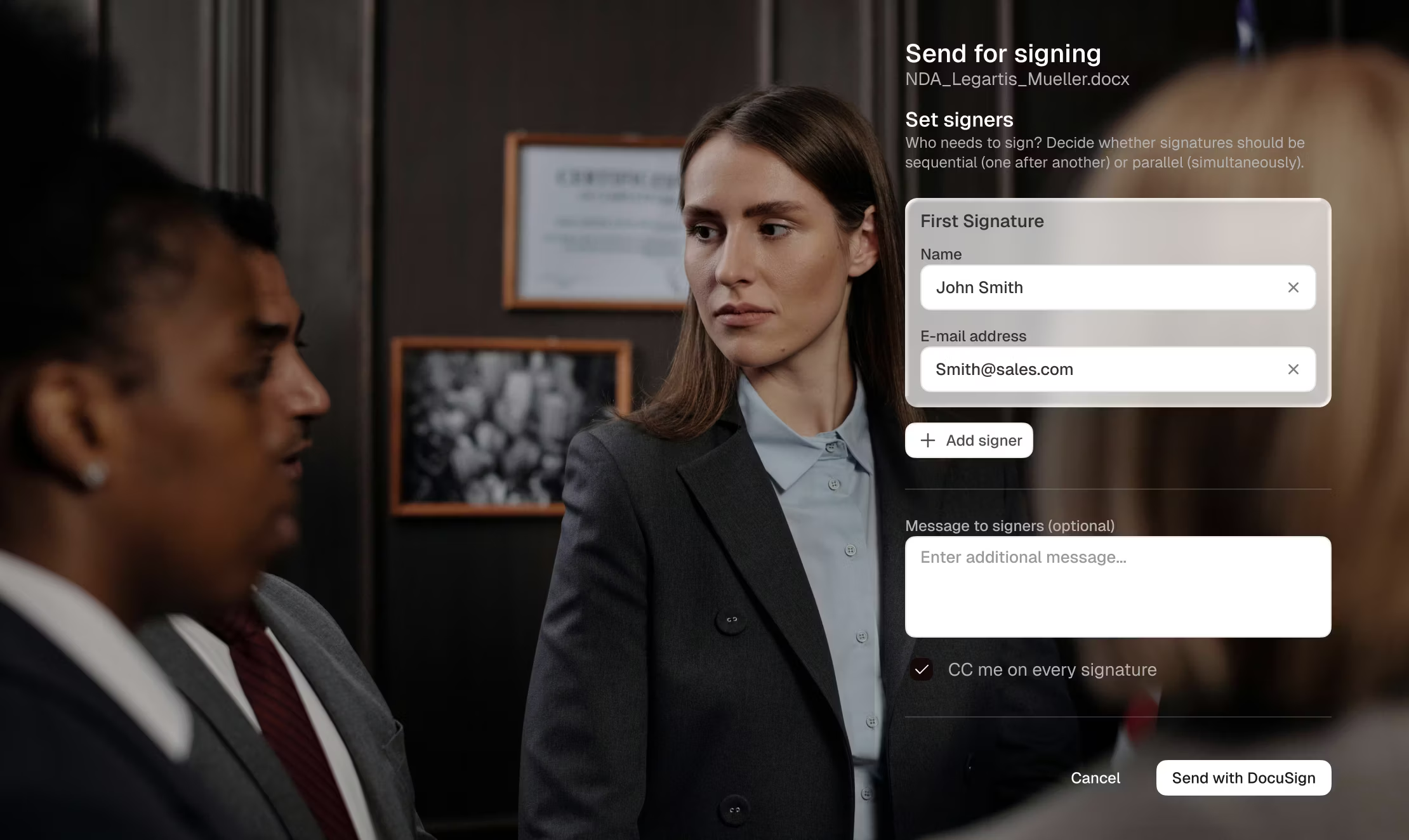
No. Legartis Signature is built in and needs no separate signing account. If you already use DocuSign, you can connect it.
You can connect SharePoint, Google Drive, Word, Outlook, Teams, Slack, Legartis Signature, DocuSign, Claude, Copilot, HubSpot and Salesforce. Your IT connects other systems, such as a CLM or your own archive, through the API and MCP. A workspace admin connects SharePoint once your Microsoft 365 administrator approves access, and Customer Success helps you set up the rest.